Open your project, describe the task.
The agent works, you approve.
Wiozen Code is a desktop app that runs on your computer. Pick a project folder and say what you want. The agent reads files, proposes changes and runs commands, and you see every step on screen. It runs on Wiozen API's models, so you don't need a separate key or subscription.
- Windows 10 and 11, 64-bit
- Works with Wiozen API
- Pay from your balance as you go
Start in three steps
Download and install
Download the installer and double-click it. If Windows shows a warning, the download page walks you through it.
Sign in with Wiozen
The app opens the sign-in page in your browser. No account yet? Create one there; new accounts get trial credit.
Pick a folder, describe the task
Open your project folder and tell the agent what you want in a plain sentence, like "the discount code in the basket is computed wrong, fix it".
You see everything the agent does
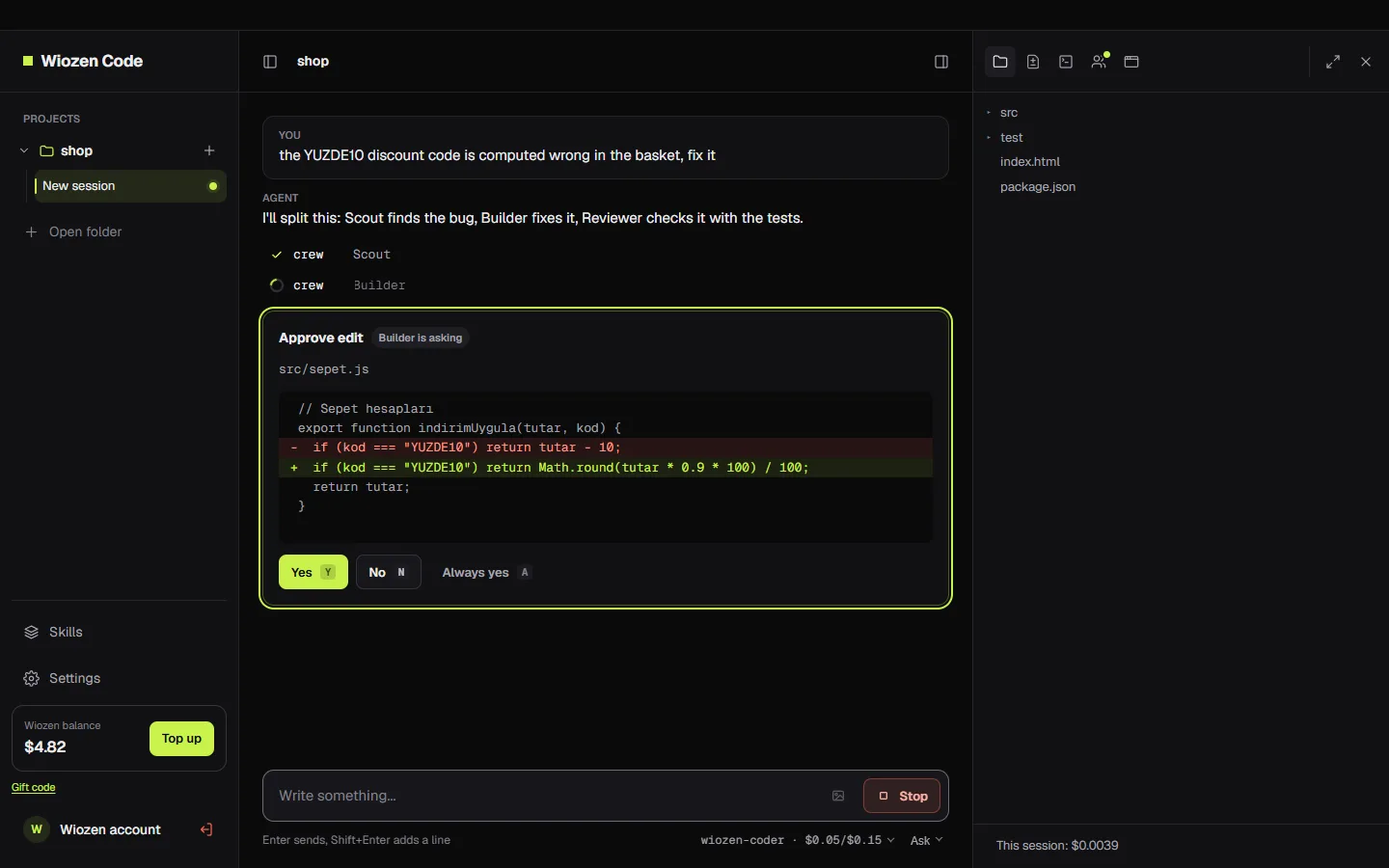
Every screenshot comes from the app itself. In the sample project, a discount bug gets fixed.
Watch your crew in the office
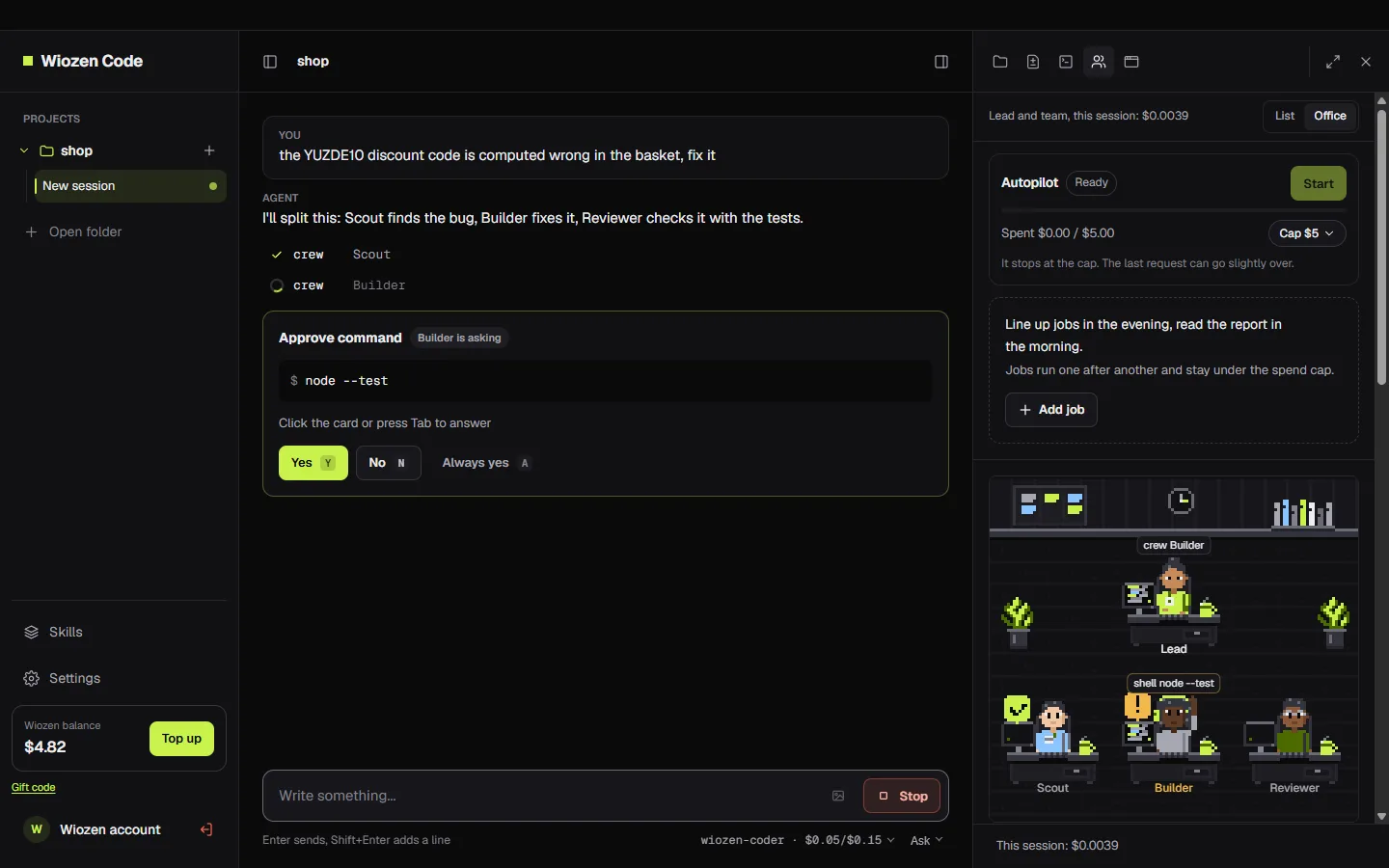
On a larger task the agent acts as the lead and splits the work: the Scout finds the bug, the Builder fixes it, the Reviewer runs the tests. In the small office on the Team panel you see who is working, who is waiting for your approval and who has finished, right at their desks.
- The list view shows each card's proof command, exit code and last lines
- A card without proof is marked "not verified"
- Two workers never edit the same file at the same time
Approval cards
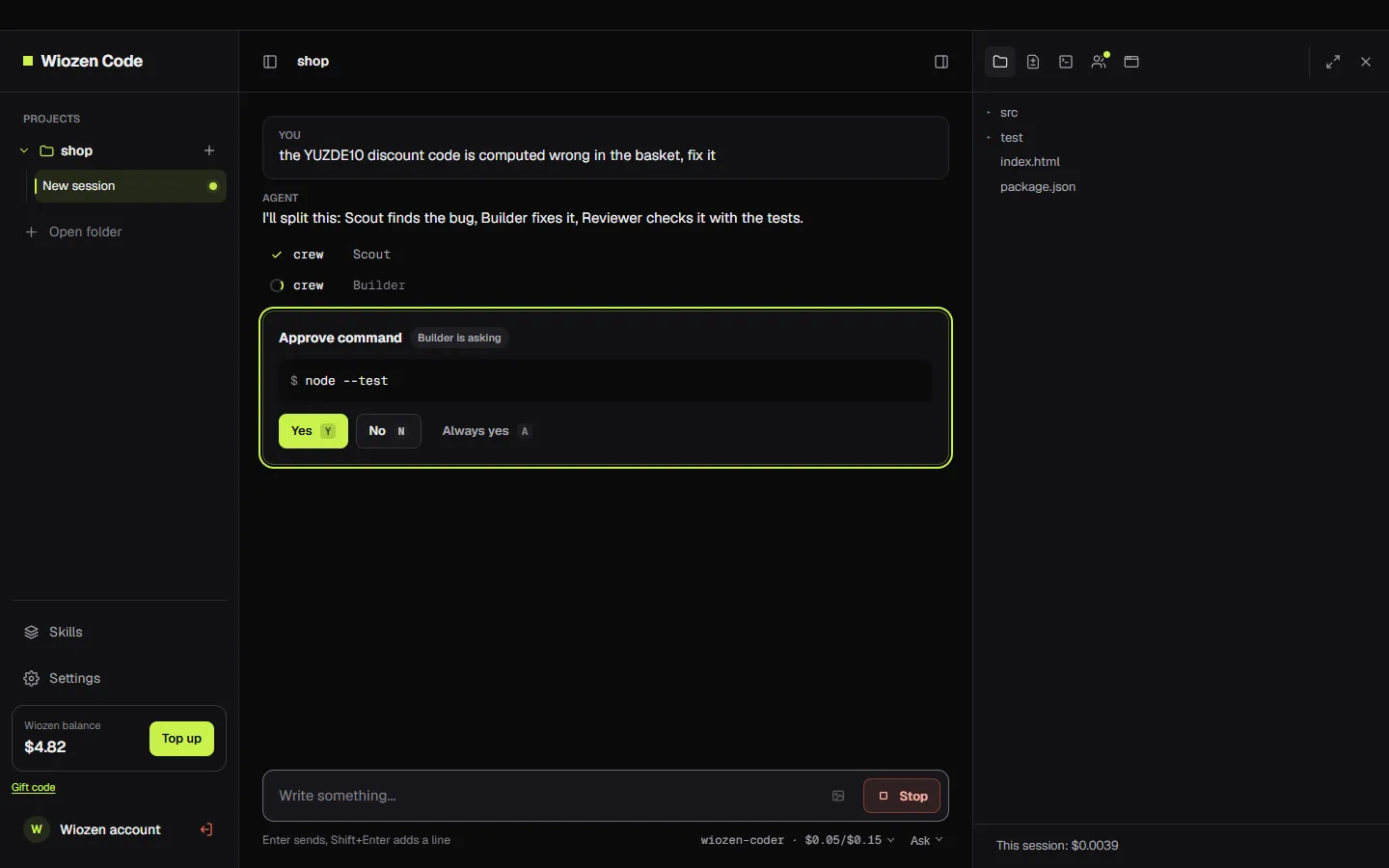
In Ask mode every file change arrives on a card with its diff, and every command arrives in full. Nothing is written to disk and nothing runs until you approve.
- Yes (Y), No (N), Always yes (A) from the keyboard
- Or allow edits, or everything, up front
- Esc stops the agent on the spot
Plan first, then build
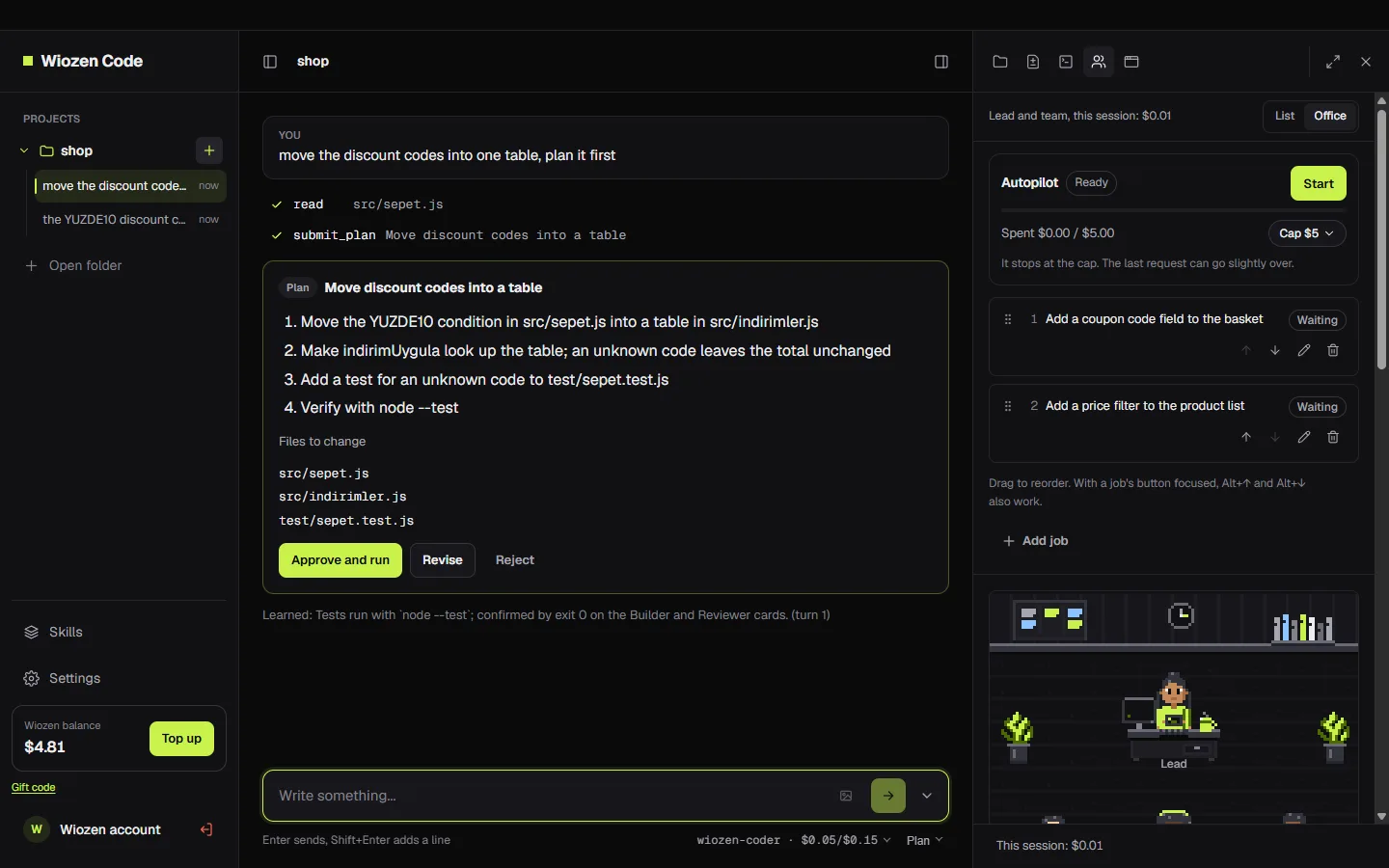
In Plan mode the agent only reads. It looks through the code and puts the steps and the files it will change on a plan card. Approve it and the agent builds it; choose "Revise" and it takes your note and rewrites the plan.
- Nothing is written and no command runs in Plan mode
- Approve, revise or cancel with one click
Undo any turn; it makes its own commits
When the project uses git, the agent takes a hidden snapshot before each turn. "Undo this turn" under a turn puts the files it changed back the way they were. When the work is done, the agent commits only the files it changed itself, and never pushes.
- If you edited a file after the turn, it asks first and keeps the current version aside
- Your own uncommitted changes stay out of its commits
- Automatic commits can be turned off in Settings
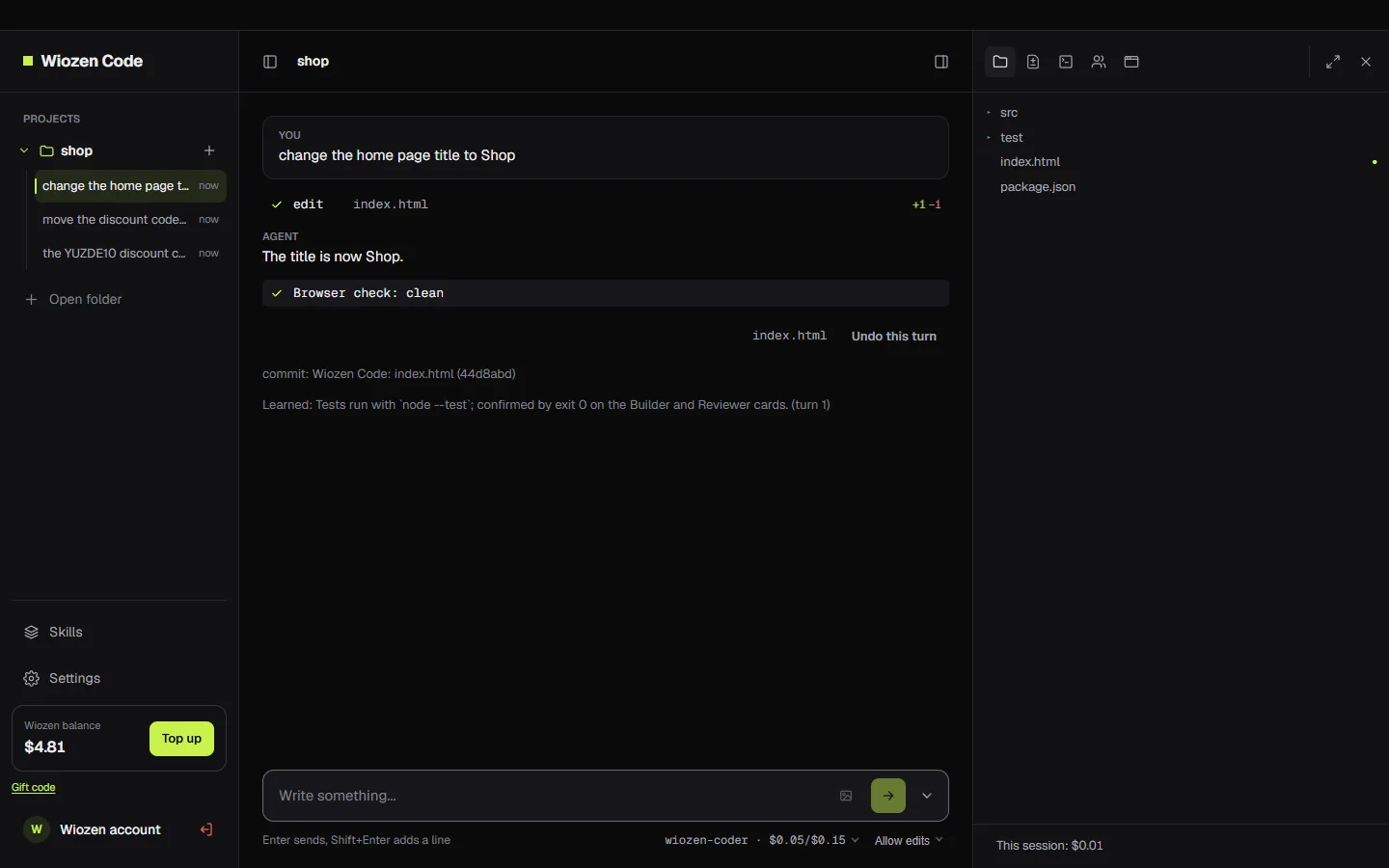
It checks the page it wrote in the browser
Open the site you run locally in the Preview tab. When the agent changes a web file, the page reloads and is watched for a few seconds; console errors, failed requests and a blank page go back to the agent, and it fixes them.
- Works on local addresses only
- Only you see the page screenshot; it is not sent to the model
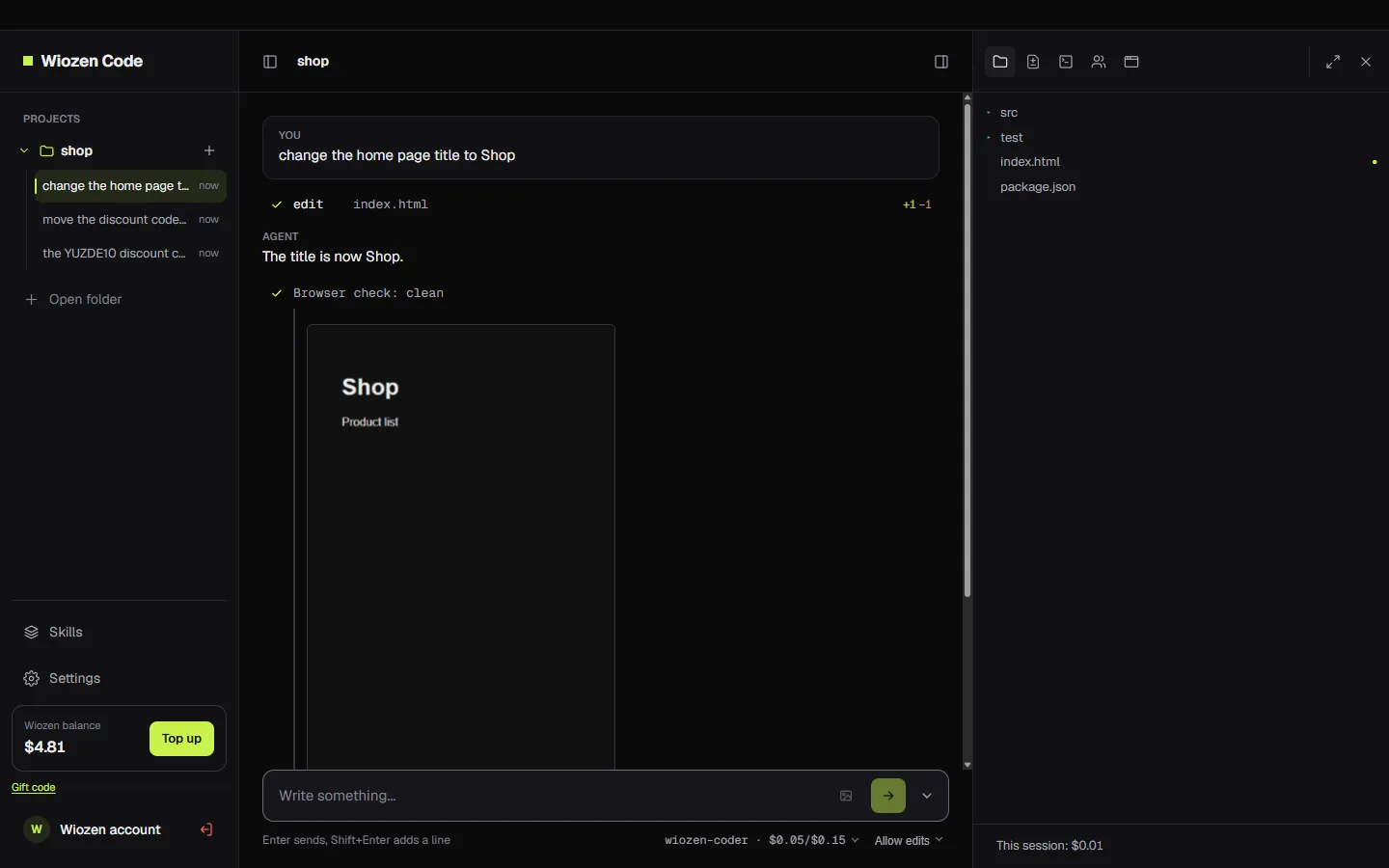
Queue it up at night, read the report in the morning
Put jobs in the queue and start autopilot. The agent works through them one by one and stops at the spending cap you set. Give a job a check command and it only counts as done once the command passes. In the morning the report tells you which jobs finished and which failed.
- Commands that can't be undone are still put to you on autopilot
- Stop the queue whenever you like
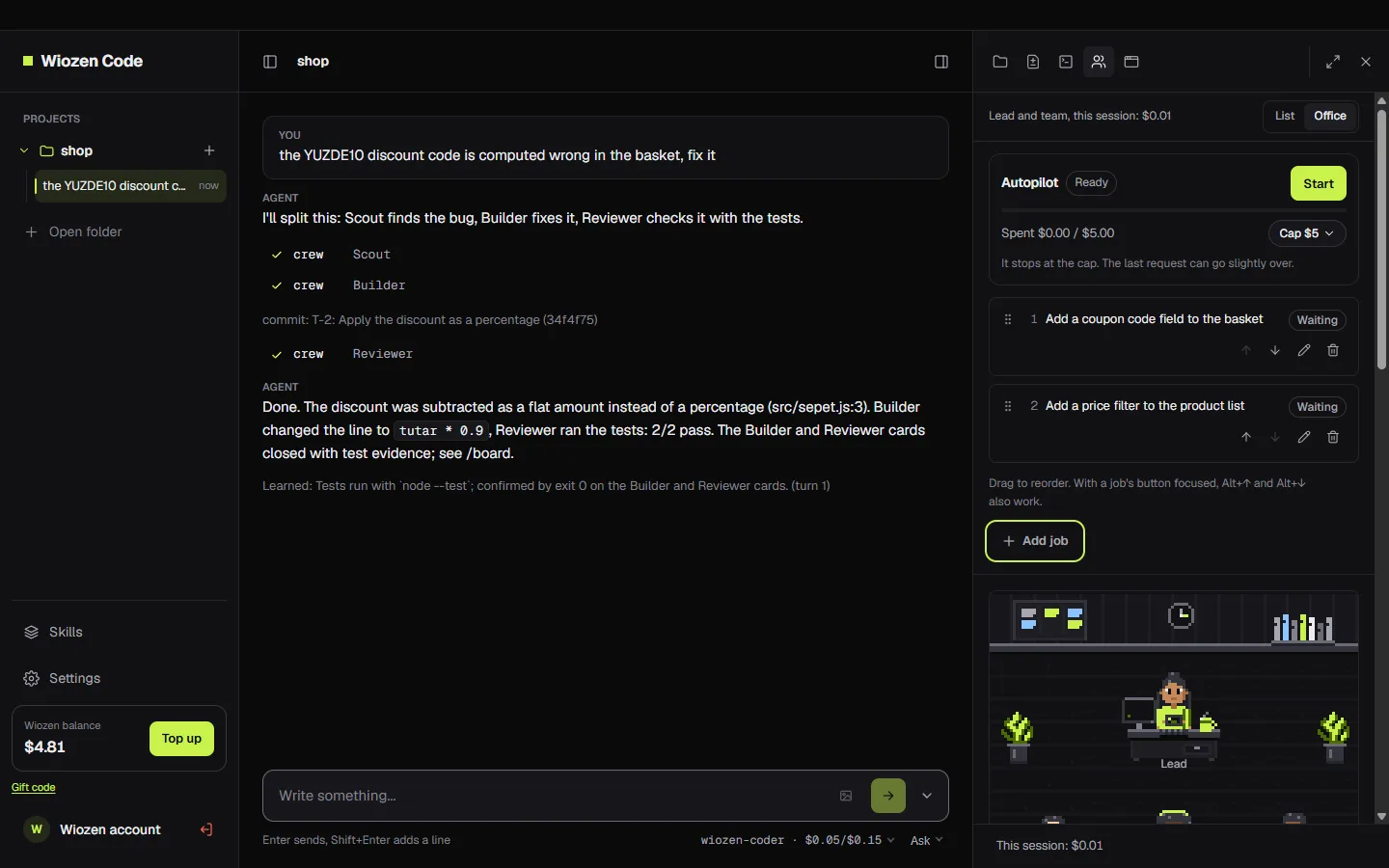
Files, changes and a terminal
The Files panel has the project tree and an editor. The Changes panel shows the git diff and the agent's commits. The terminal is real PowerShell, opened in your project folder; run the same tests the agent ran.
- If the agent changes an open file, the editor reloads it
- Ctrl+K command palette, Ctrl+N new session
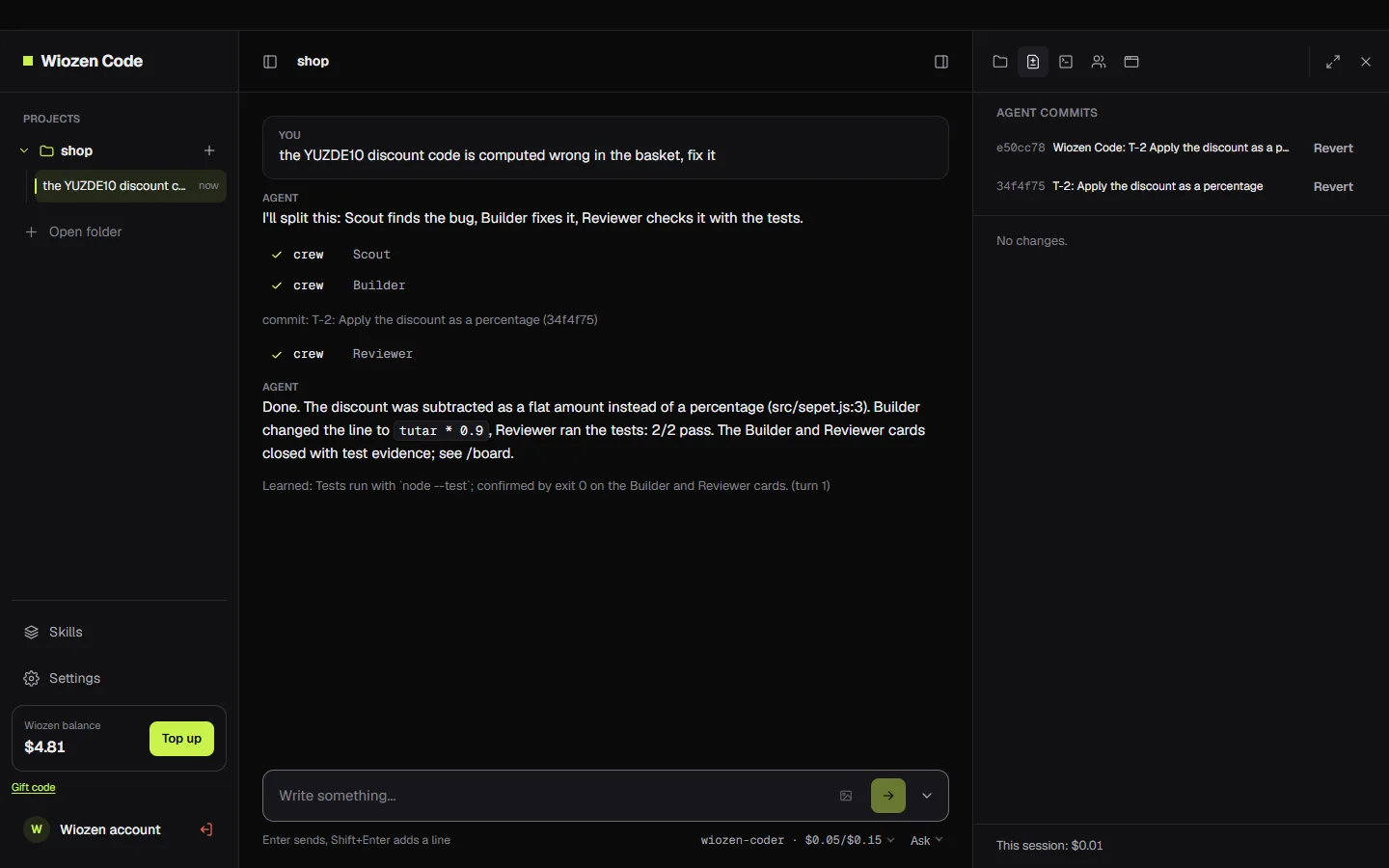
Skill library and learning
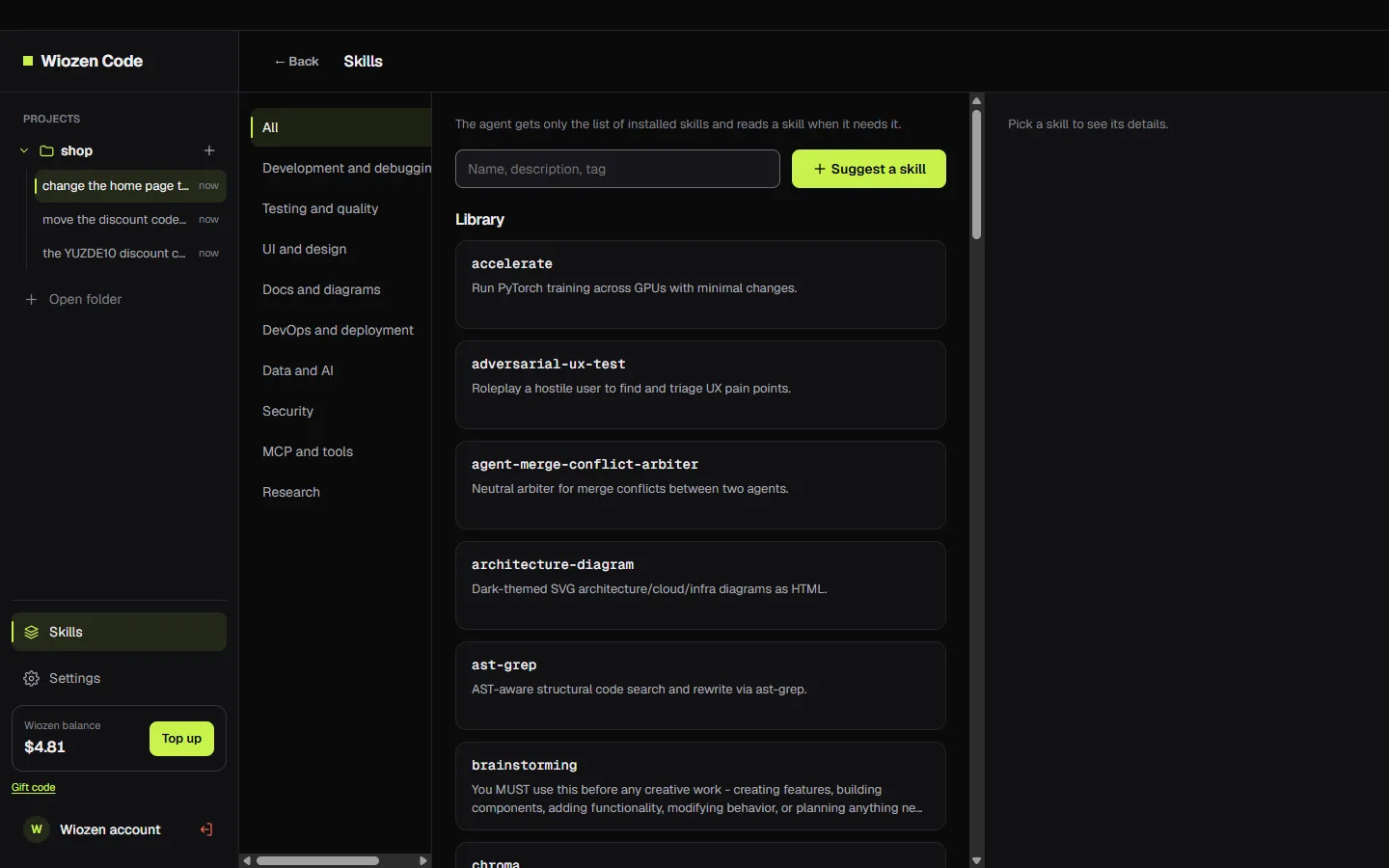
A skill is a step-by-step instruction that tells the agent how to do a particular job. The library has 38 ready skills for work like testing, code review and deploys. Install one for yourself or just for one project. The agent sees only the list of installed skills and reads one when it needs it.
- With learning on, the agent writes down what it learns and uses it next session
- Skills the agent wrote itself sit in their own list, delete the ones you don't want
Works with Wiozen API
Every request the agent makes goes through api.wiozen.com and runs on Wiozen API's models. There's no separate account, key or subscription for the app.
Your key sets itself up
When you sign in with your Wiozen account, a Wiozen API key is created for this computer and connected to the app. Nothing to copy and paste. The key shows up in your API panel as "Wiozen Code", and you can revoke it there.
Same models, same prices
The model picker gets its list from Wiozen API. Coding models like wiozen-coder are there with their prices, and the list and prices match the API's models page.
One balance
Spending comes out of the same Wiozen balance you use for the API. Every Wiozen Code request also shows up on the usage page of your API panel.
Already on Wiozen API?
Sign in with the same account and start right away with your balance.
It reaches past your project
MCP connections
Connect services like GitHub, Sentry, Supabase, Linear or Figma over MCP. The agent uses their tools through the same approval cards. Access keys are stored in Windows' encrypted store.
Spending in plain sight
Your balance sits bottom left, this session's spend bottom right. Set a spending cap per session and the agent stops when it reaches it.
Paid from your Wiozen balance
No subscription. The app is free to download; the agent's requests come out of your balance as you use them.
Pay as you go
Each request is charged at the price of the model you picked, by token count. The model picker shows every model's price.
Trial credit
New accounts that verify their email get trial credit. You don't need a card to try the app.
One balance
The same balance as Wiozen API, Forge and the other Wiozen apps. Top it up by card at account.wiozen.com.
Questions
Why does Windows show a warning when I install?
The installer is not signed with a code signing certificate. Those cost a yearly fee and we haven't bought one yet. Windows shows "Windows protected your PC" for unsigned, new files. Click "More info", then "Run anyway" to install. You can check that the file is exactly the one we published with its SHA-256 checksum.
Where do my code and data go?
The agent runs on your computer and your files stay there. Only the chat text and the parts of files the agent reads for the task go to the model, through api.wiozen.com to the provider that runs the model. Some providers may use what they receive to improve their models, so don't let the agent read files with passwords, keys or personal data. Error reports are sent only if you allow them on first launch, and they never contain code, file names or chat.
Which models can I use?
Wiozen Code uses Wiozen API's model catalog; the app has no model list of its own. The default is wiozen-coder. The model picker shows each model's price and you can switch in the middle of a session. All models and their prices are at api.wiozen.com/models.
Is it paid? Is there a subscription?
The app is free and there is no subscription. The agent's requests are paid from your Wiozen balance. New accounts get trial credit.
Does it run on Mac or Linux?
Not yet. Windows 10 and 11, 64-bit only.
How do updates arrive?
The app fetches new versions from this site by itself. What changed in each version is in the release notes.
Open a project and give it the first task.
Installing takes a minute. Sign in with your Wiozen account and start right away with trial credit.